


System Configuration
EasyDCIM is a comprehensive data center management platform that brings together device provisioning, resource allocation, customer management, and automation into a single environment. Before putting the system into production, it is worth reviewing the global settings pages in the admin area and aligning them with your operational model.
The current configuration interface is split into two groups:
- Basic settings: Base Settings, Mail Configuration, Authentication, Email Summaries, Client Area, Appearance, and System Access
- Advanced settings: Notifications, Orders & Services, Traffic Management, Power Management, and Other
The sections below walk through the most important areas to configure for a stable and secure deployment.
Step 1: Set Up Basic Information
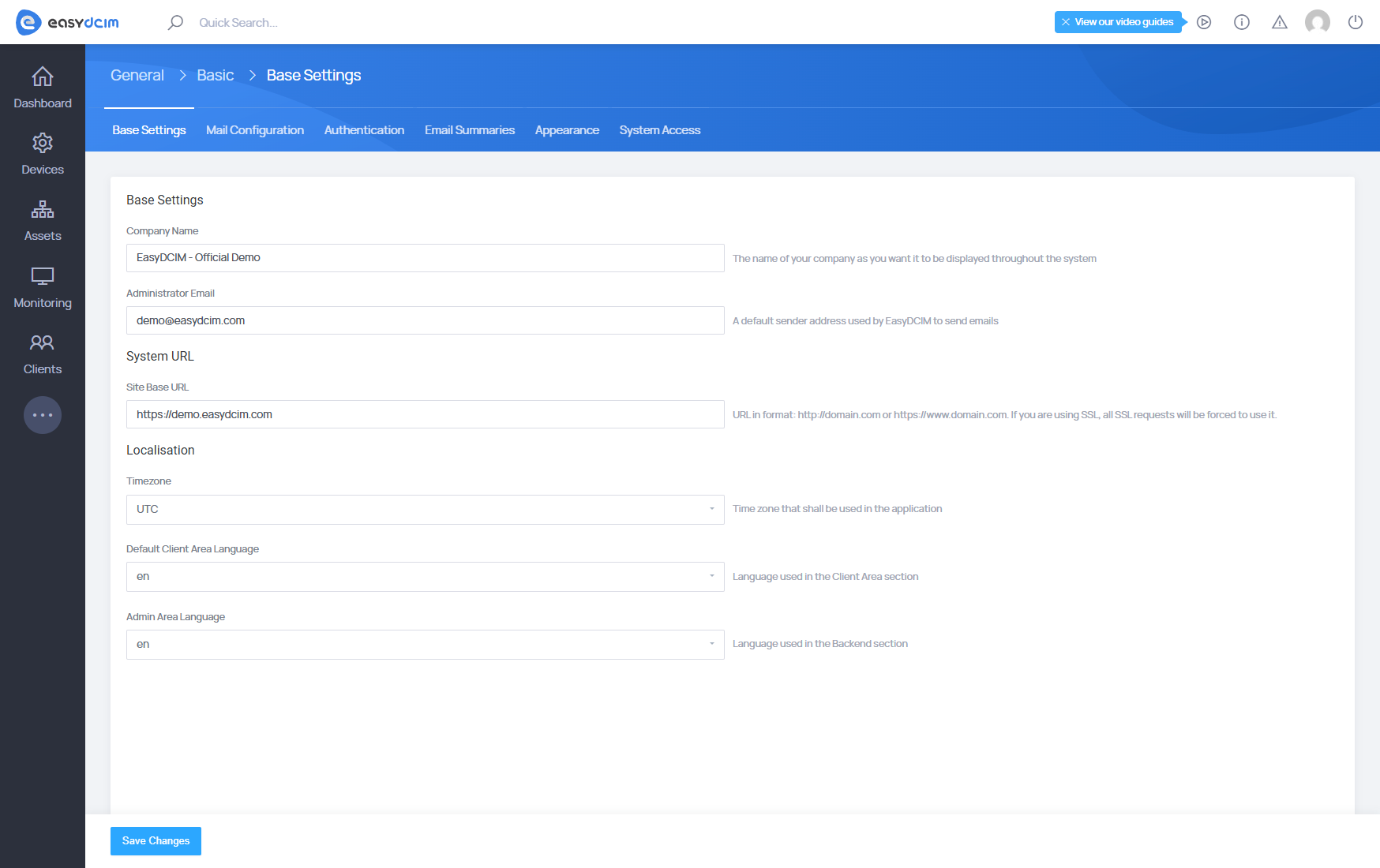
Define your company identity, set localization options, and configure the base system URL. This step ensures the backend works under the correct domain, timezone, and language settings from the start.
- Company Name – Enter the name of your organization.
- Administrator Email – Provide a valid admin email for notifications and system alerts.
- Site Base URL – Use your full domain (e.g.,
https://yourdomain.com). Make sure to use HTTPS if SSL is enabled. - Timezone – Select your time zone (e.g.,
Europe/Warsaw) to ensure correct logging and time tracking. - Admin Area Language – Choose the default backend language used by administrators.
Step 2: Configure Mail Settings
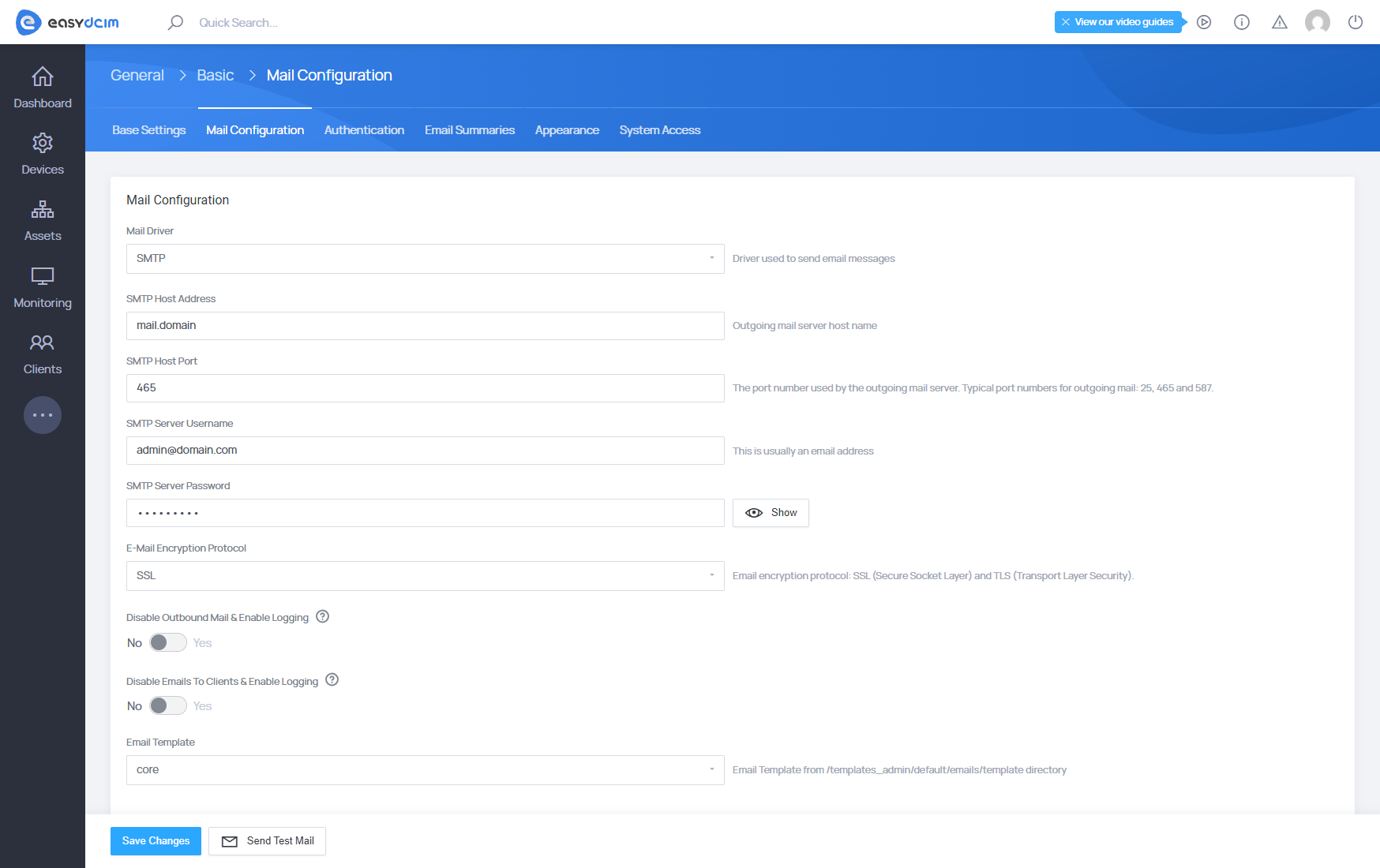
Enable the system to send transactional and notification emails through a secure mail transport. Email notifications are crucial for system operations such as new order alerts, system warnings, summaries, and user registration.
- Mail Driver – Choose the delivery method used by EasyDCIM. The current interface supports SMTP and Sendmail.
- SMTP Server Details:
- Host Address (e.g.,
mail.yourdomain.com) - Port (commonly
587for TLS or465for SSL) - Username & Password – Enter valid credentials for the mail server.
- Host Address (e.g.,
- Encryption – Select No Encryption,
TLS, orSSL. - Outbound Mail Options
- Optionally disable sending emails system-wide or to clients only, while retaining logs for debugging.
- Send Test Mail – Use the built-in test action to verify that the current mail configuration works correctly.
Customize Email Appearance
After setting up your mail configuration, you can customize the appearance of system email messages to match your brand. Go to: Basic System Settings → Appearance → Email Appearance.
Here you can:
- Adjust the CSS styles used in email templates.
- Edit the footer content to include company details, disclaimers, or contact info.
- Use dynamic variables to personalize the footer output.
The base content of each system email is generated dynamically by the application based on the action performed (such as order confirmation, account creation, or system alert). You can modify the email footer and CSS styling, while the main body content is populated automatically by the system. This ensures your transactional emails remain functional and visually consistent with your corporate identity.
Available Mail Template Variables
You can use the following variables in the Email Footer field.
| Variable | Example Value |
|---|---|
{{ logo_url }} |
https://your-easydcim.com/uploads/settings/logo.png |
{{ app_name }} |
Dedicated Servers Provider |
{{ app_url }} |
https://your-easydcim.com |
{{ current_year }} |
2025 |
{{ date }} |
2025-08-14 |
{{ datetime }} |
2025-08-14 12:42:27 |
{{ formatted_date }} |
August 14, 2025 |
{{ formatted_time }} |
12:42 |
Step 3: Configure Authentication and Client Area
Set how administrators and clients authenticate, and decide how the Client Area is exposed.
Authentication
The current Authentication page is split into two groups:
- Client Area Authentication Providers
- Backend Authentication Providers
Depending on your deployment, you can enable and configure:
- GitHub
- Client Area OAuth Provider
- Backend OAuth Provider
Each provider includes a switch and a Configure action. For custom OAuth providers, EasyDCIM expects values such as Client ID, Client Secret, Authorization URL, Access Token URL, Resource URL, and optional Scopes.
Client Area
On the Client Area settings page you can control how the customer-facing interface is deployed:
- Client Area Mode
- Local – the Client Area is installed together with EasyDCIM
- External – the Client Area is hosted on a separate URL or server
- Client Area URL – appears when External mode is selected
- Client Area Branding – opens the branding editor for the Client Area
- Client Area Version – shows the installed Client Area version, when available
- Default Client Area Language – sets the default client-facing language
- Disable Client Area – disables access to the built-in Client Area
Step 4: Secure System Access
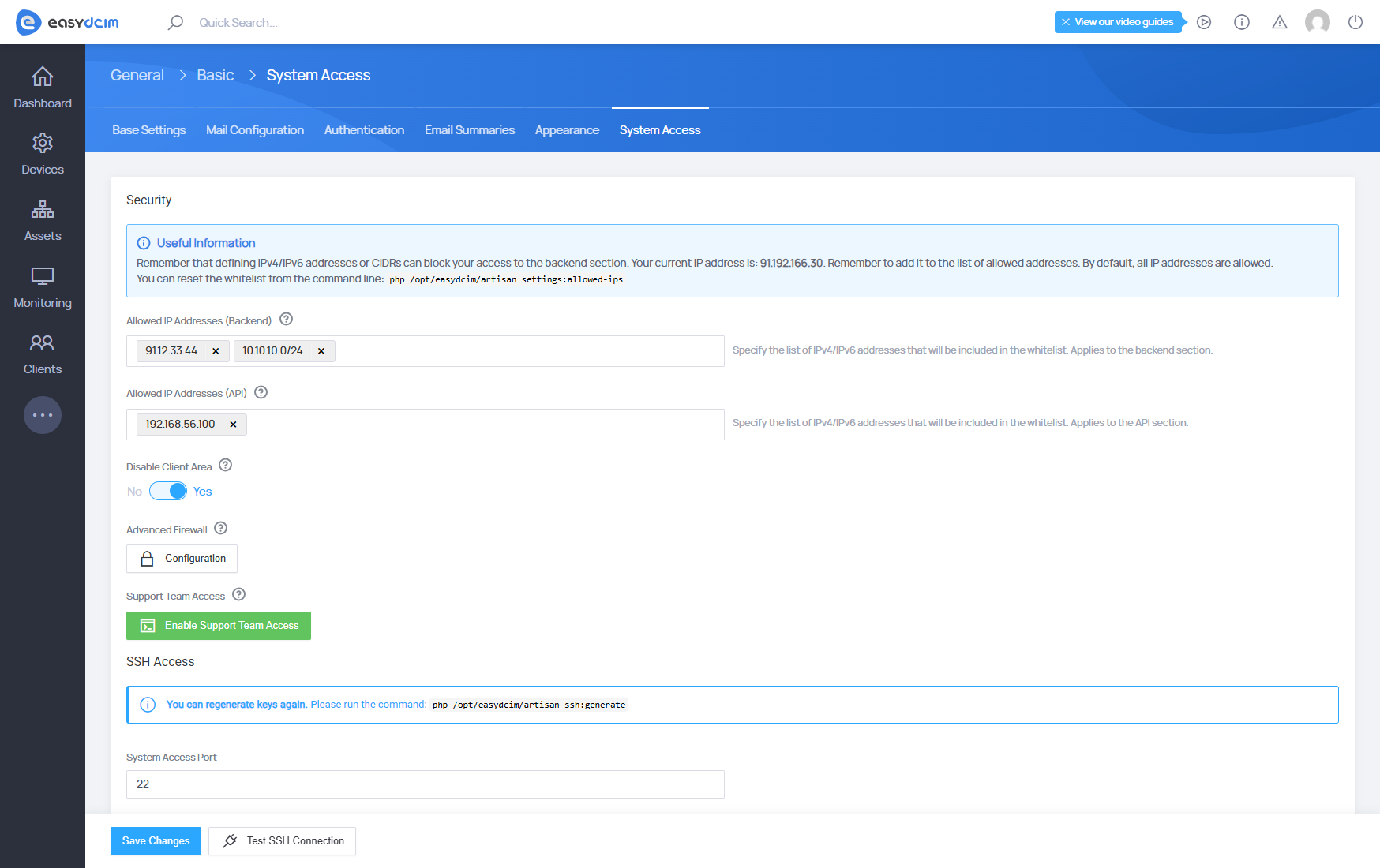
Restrict access, configure firewalls, and protect remote entry points to keep your system safe. In this step, define trusted IP addresses for backend and API access, configure ModSecurity, and review SSH-related support access.
- Restrict Access by IP
- Add allowed IP addresses for backend and API (e.g.,
192.168.1.1or192.168.1.0/24)
- Add allowed IP addresses for backend and API (e.g.,
- Enable ModSecurity
- Activate this firewall to block web threats like XSS and SQL injection.
- Add trusted IPs to bypass filtering, if needed.
- Allow Support Team Access
- Use the dedicated action button to enable or disable support-team SSH access when assistance is required.
- Test SSH Connection
- Use the built-in test action to verify the local SSH connection used by EasyDCIM.
- SSH Key Management
- If needed, regenerate SSH keys from the command line with
easydcim-control app shell -- php artisan ssh:generate.
- If needed, regenerate SSH keys from the command line with
Step 5: Set Up Orders and Service Provisioning
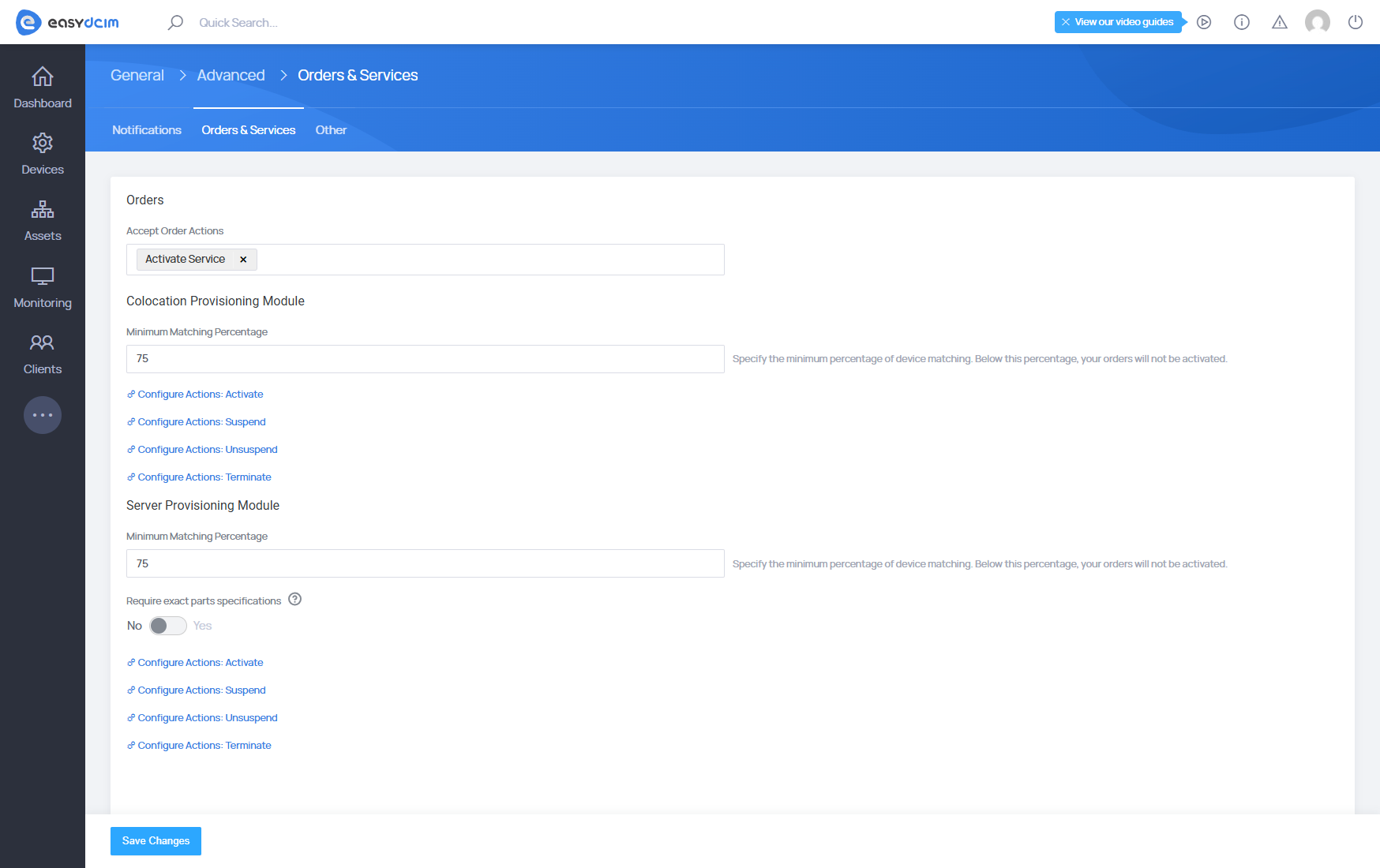
Automate provisioning for services and servers, and control order behavior. This step configures how EasyDCIM handles service orders, including provisioning accuracy, hardware matching requirements, and action workflows. It allows your team to standardize service delivery while minimizing manual intervention.
Server Provisioning Module
- Minimum Matching Percentage – Require a high level of hardware match (e.g., 100%) for provisioning server orders.
- Configure Actions – Define actions for managing the server lifecycle, including activation, suspension, unsuspension, and termination. A detailed explanation of how each provisioning action works, along with a reference table of all available actions, can be found in Provisioning Actions Overview section.
- Require Exact Parts Specifications – When enabled, provisioning will only occur if the hardware matches the order exactly.
Colocation Provisioning Module
- Minimum Matching Percentage – Set the minimum percentage of resource matching required to activate a colocation order.
- Configure Actions – Set actions such as Activate, Suspend, Unsuspend, and Terminate for colocation services.
EasyDCIM renders one configuration block per registered provisioning module, so the exact list can vary between installations.
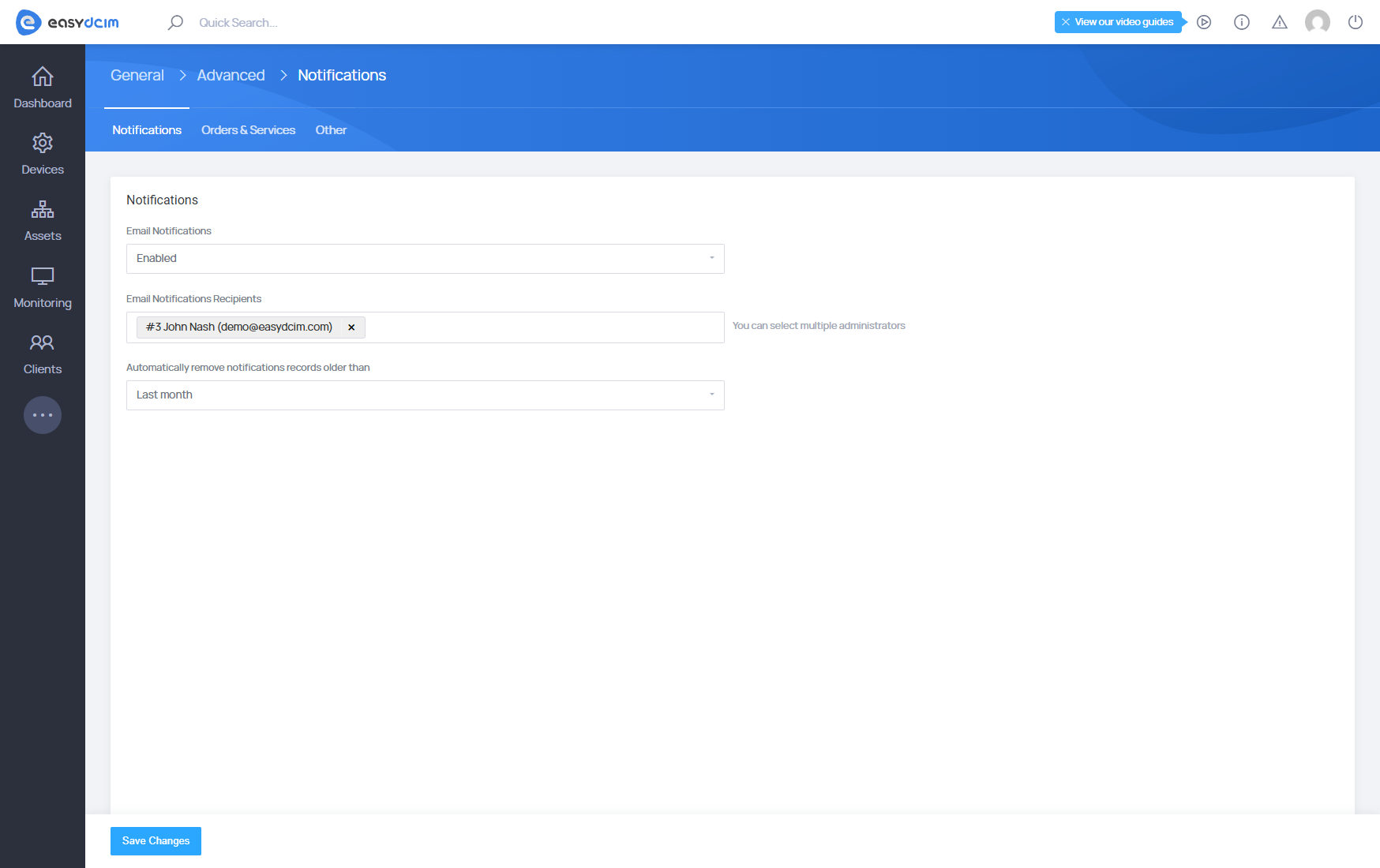
Step 6: Configure Notifications and Email Summaries
Control how the system communicates alerts and manage notification cleanup. Notifications and summaries allow administrators to stay informed about activity within the system.
Notifications
- Mail Notifications – Toggle system-wide email notifications on or off.
- Mail Notifications Recipients – Define specific administrators who should receive system alerts.
- Automatically Remove Notifications Records Older Than – Set how long stored notification records should be kept.
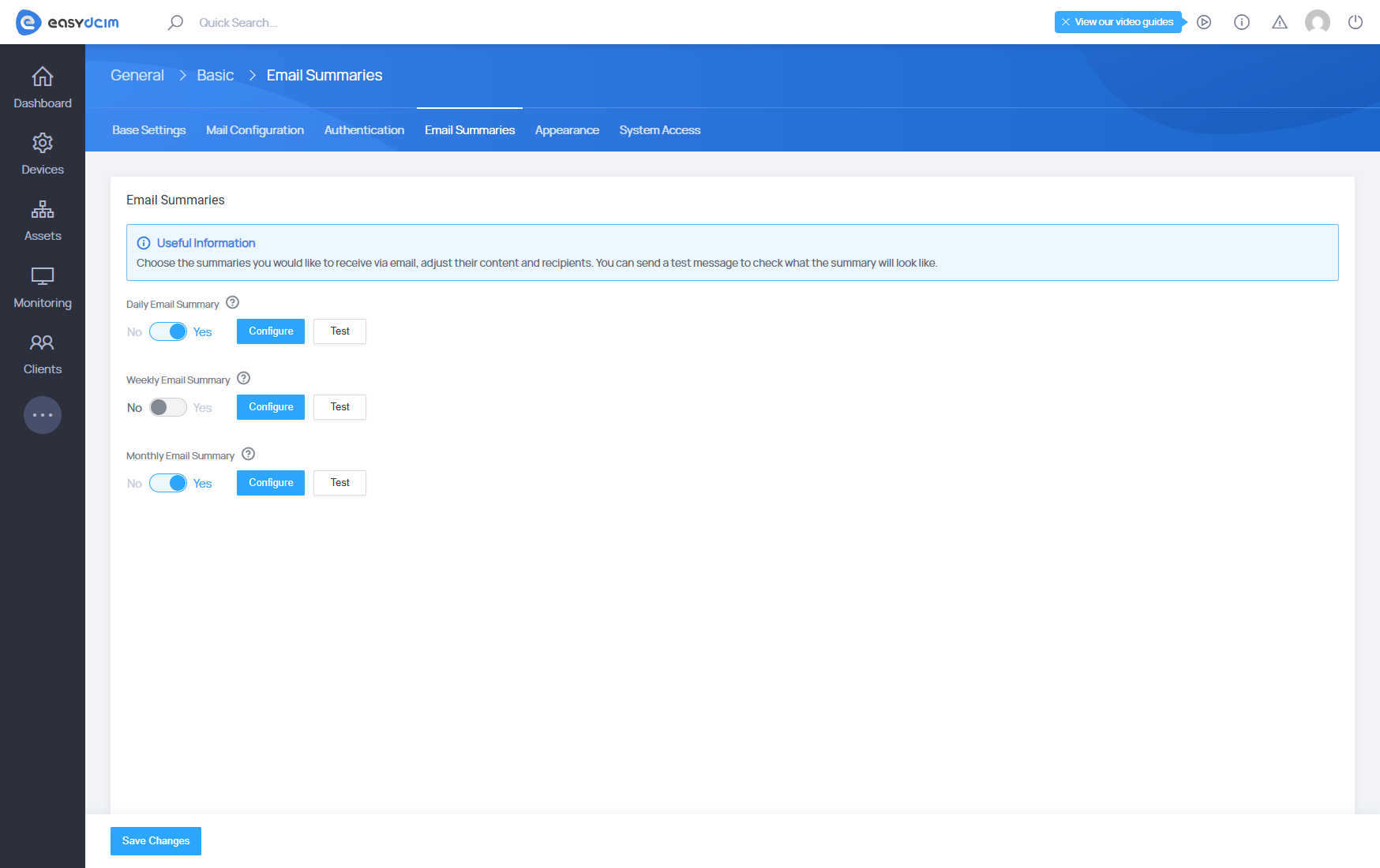
Email Summaries
- Enable and configure daily, weekly, and monthly summaries.
- Use Configure to choose summary content and recipients.
- Use Test to preview a summary before relying on it in production.
- Weekly and monthly summaries include a configurable Delivery Day.
Final Notes
By following these steps, your EasyDCIM system will be correctly initialized, secured, and ready for daily use. Always verify each configuration and test your setup before going live.
For a complete list and detailed explanation of all system configuration fields, visit the System Configuration Fields: Quick Reference.
For global bandwidth presentation, 95th percentile behavior, and default power calculation rules, see Traffic and Power Management.

